From setting up to the assessor's pack
Five steps, the same whether you are taking CInOrg or GInMAT, and whether it is your first assessment or your third. Each screen is the real portal, with example data.
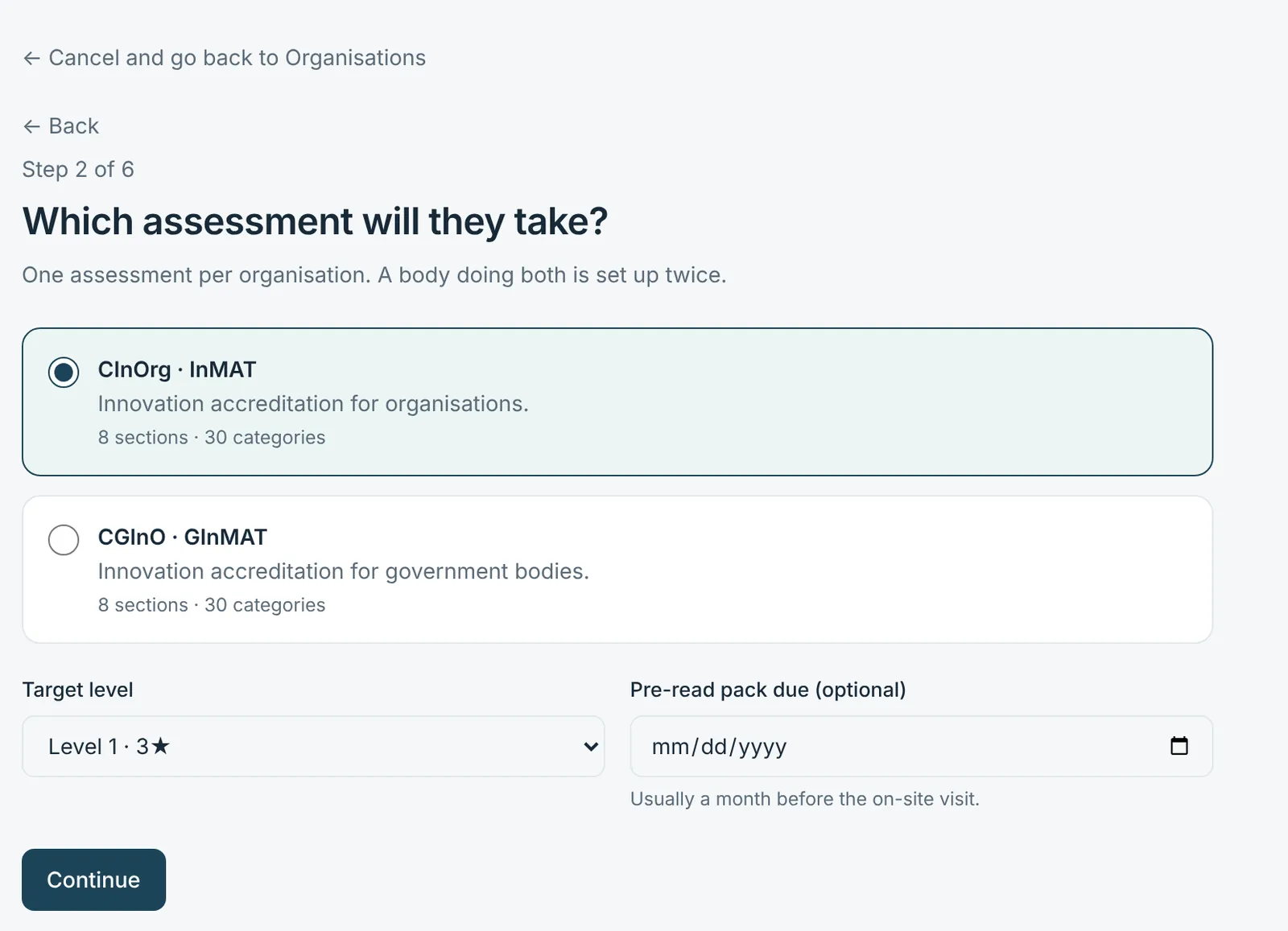
Your consultant sets up the organisation
Access is opened by a person, after a short conversation — never by a form alone. You can ask for it on this site.
- The assessment is chosen first: CInOrg for organisations, CGInO (GInMAT) for government bodies.
- Functions are optional. Without them, your coordinator answers everything.
- Questions that don't apply to you can be left out before you start, each with a reason.
Each Function gets its own link
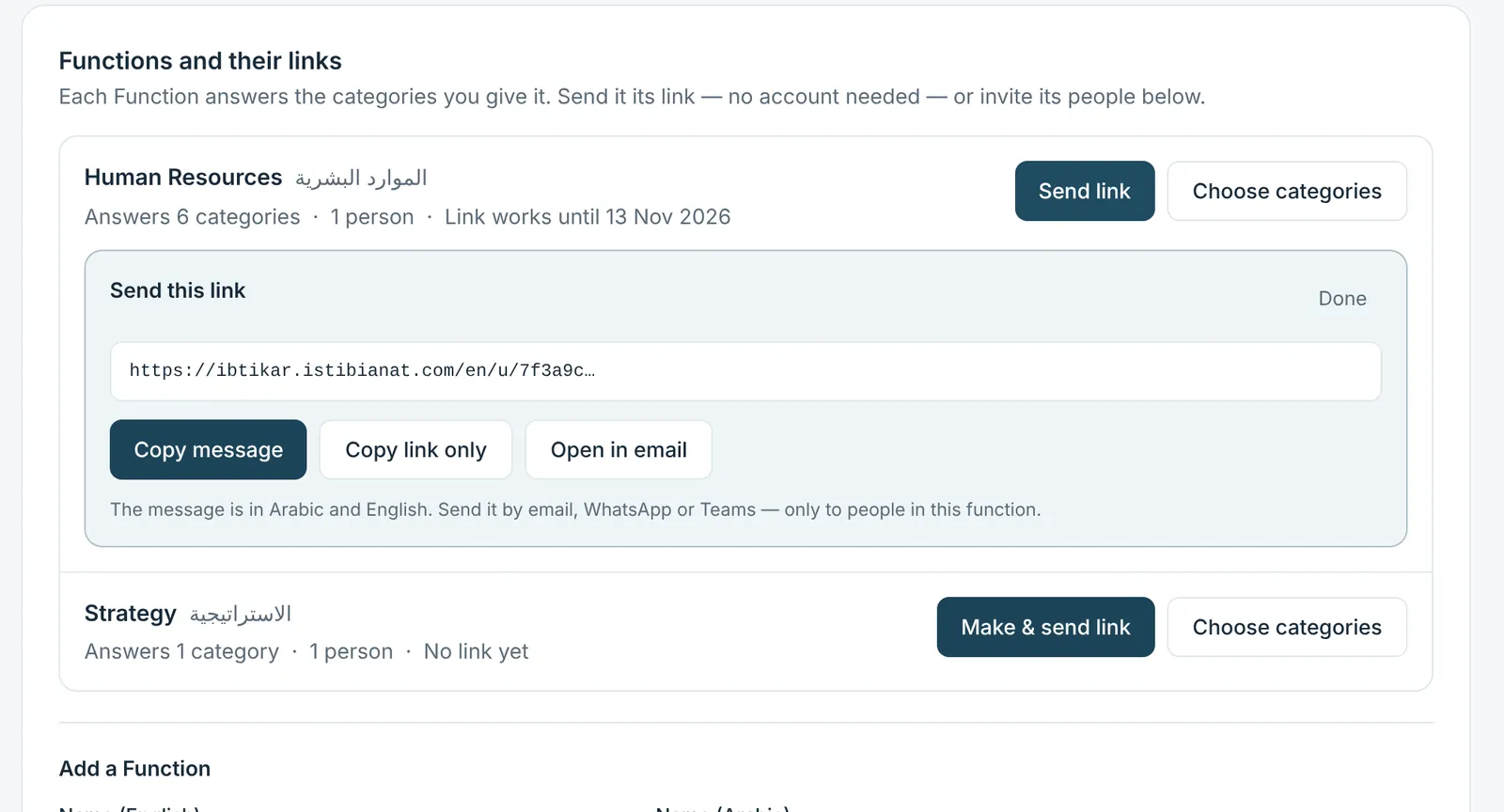
Your coordinator, or your consultant, sends each Function one link. Nobody needs an account or a password.
- A link opens only that Function's categories, and works for the number of days you choose.
- It can be stopped or replaced at any time; anything already sent stays.
- People who prefer an account can be invited instead.
People answer and link their evidence
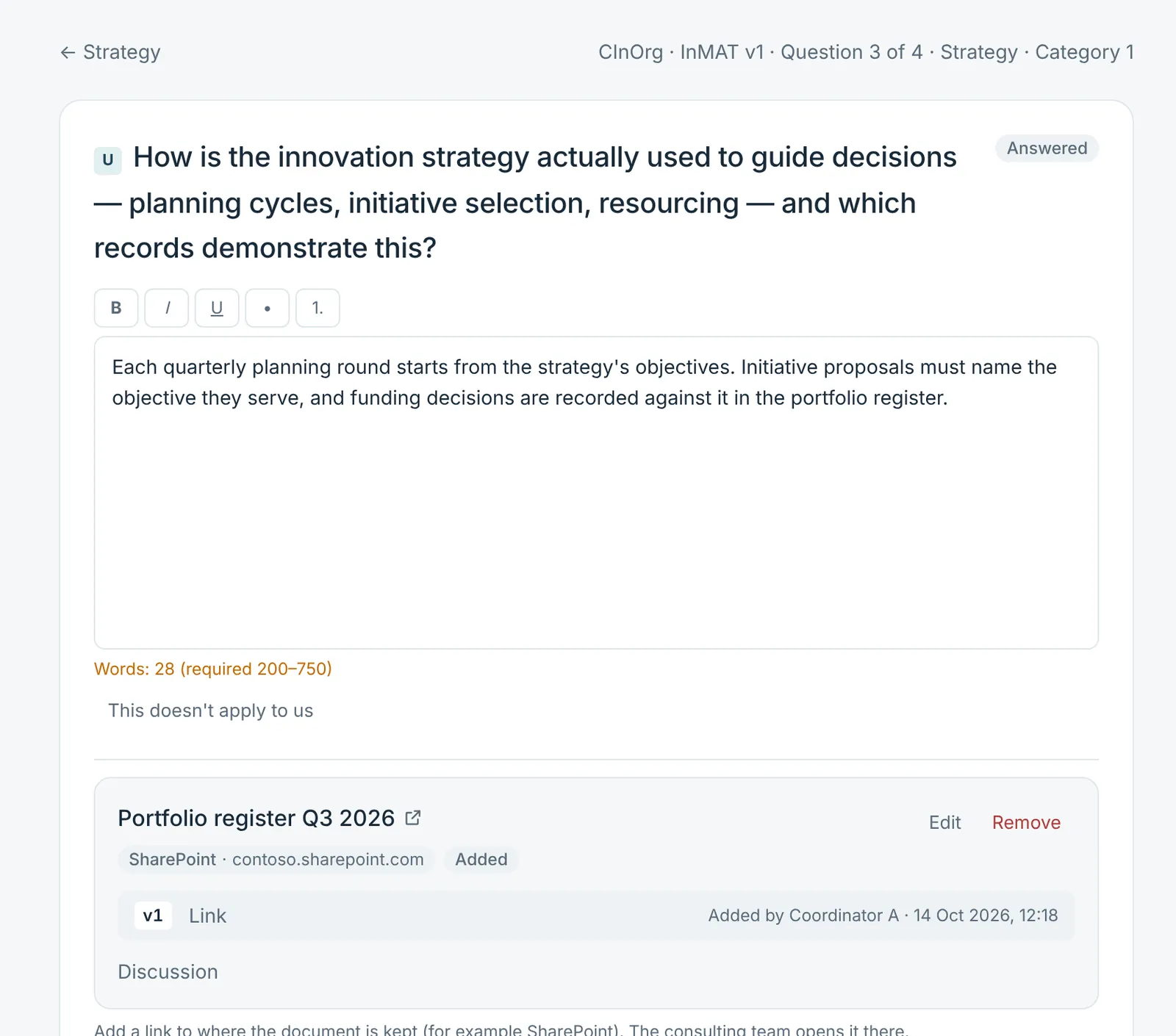
Four short questions per category, one at a time, with a word count. Evidence is a link to the document where it already lives.
- Each link has a title and, if useful, a line on how it supports the answer.
- A question that doesn't apply is marked “not applicable” with a reason — never scored as zero.
- Drafts save as you type, so a colleague can pick up where someone left off.
Your consultants review
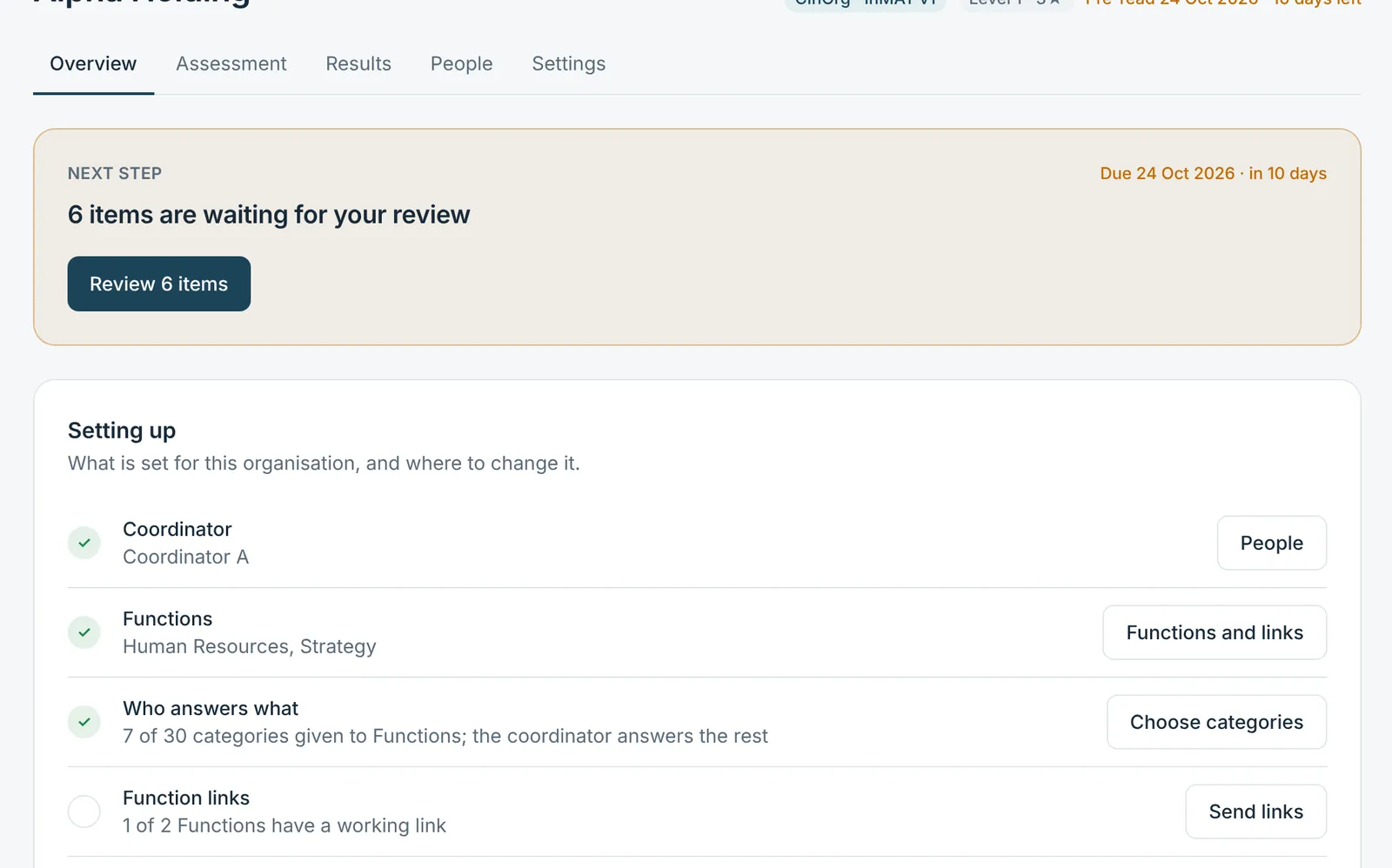
Every answer and every link is accepted, or sent back with a note saying what is missing.
- Each organisation's page says what to do next and where everything is set.
- Accepted work is locked; a change goes back for review.
- Internal notes between consultants never reach your team.
Scoring, results and the pack
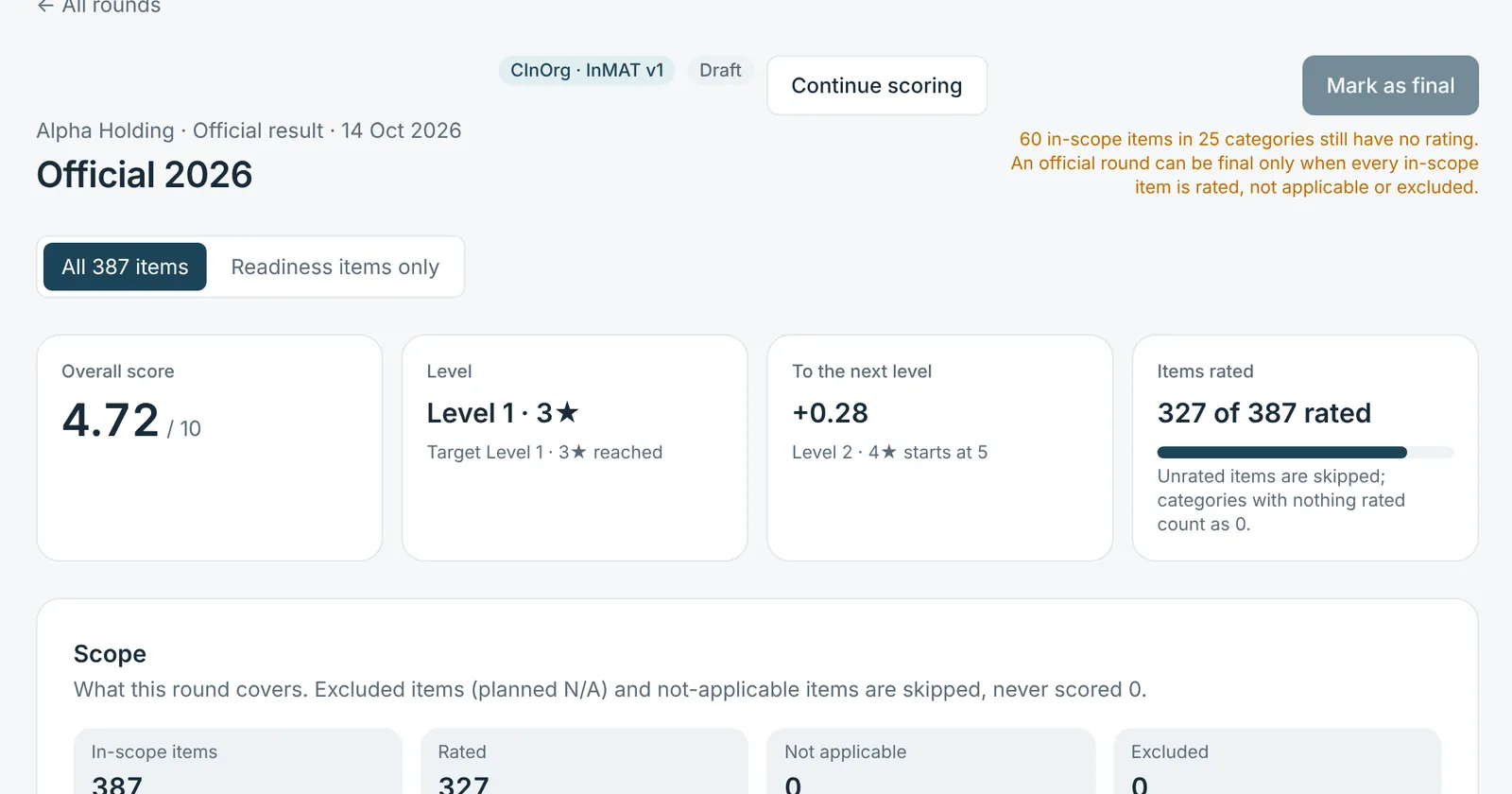
Items are rated 0 to 10. The result shows the level, what the round covered and which gaps cost the most.
- Baseline, mock and official rounds, any two of them compared.
- A readiness view answers only the items GInI flags for readiness, with no level awarded.
- The assessor pack is frozen once ready: it cannot change afterwards.
What you end up with
Each in Arabic or English, generated from the work as it stands when you ask.
- Evidence indexXLSX
- Every piece of evidence with its reference code, category, Function and the date it was added — links listed with their addresses.
- Readiness reportDOCX
- The score, the section radar, the category table, the gaps in order and a comparison with your previous final round.
- Written answersDOCX
- Every answer with its author and date, for the whole organisation or one Function, worded exactly as it was asked.
- Assessor packZIP
- The frozen pack and its index. Linked documents stay at their addresses; earlier uploaded files are included.
What stays yours
The evidence is yours, and so is the decision about who sees it.
- Your documents stay in your own storage. Ibtikar keeps only the link.
- Access to each document is controlled where it lives, as it always was.
- Only the consultants assigned to your organisation can open its workspace, and no other client ever sees it.
- The workspace stays after the assessment, ready for the next round.
Ready to put your evidence in one place?
Request access and a consultant will open the organisation, map the functions and walk your team through the first category.